



 By
·
8 minute read
By
·
8 minute read
Looking for parcel tracking software that catches shipment delays before your customers notice them? Here's how Tracking Solver, ShippyPro's shipment monitoring dashboard, works: from priority tabs and filters to CSV exports and the AI-powered Delivery Forecast.
1. What is Tracking Solver? Parcel tracking software for proactive shipment monitoring
Tracking Solver is a powerful shipment monitoring dashboard that helps you identify and resolve shipping problems before they impact your customers. Instead of waiting for complaints, you can proactively spot delays, exceptions, and stalled shipments in real-time.

Key benefits:
- Automatic prioritization: Shipments are categorized by urgency so you know what needs attention first
- Centralized view: All shipment details, tracking history, and documentation in one place
- Smart filtering: Quickly find specific shipments by carrier, destination, store, tracking status, or date
2. Accessing Tracking Solver
You can access Tracking Solver by going to Tracking > Tracking Solver in the left sidebar, or directly via this link: https://app.shippypro.com/tracking-solver
3. Understanding the Dashboard: priorities, filters and real-time shipment visibility
Priority Tabs

Shipments are automatically organized into four tabs:
1. All shipments
Complete list of all active shipments from the last 3 months.
2. At Risk ⚠️
Shipments that need monitoring but may not require immediate action:
- Delayed shipments
- Failed delivery attempts
- Minor exceptions (address issues, operational delays)
- Shipments without tracking updates for 36+ hours
3. Action Needed 🔴
Urgent issues requiring immediate intervention:
- Packages on hold or "in giacenza"
- Damaged or lost parcels
- Missing customs documentation
- Carrier requesting contact
4. Delivered ✅
Successfully delivered shipments (visible for 3 months).
Adjusting Priorities Manually
While Tracking Solver automatically categorizes shipments, you can override priorities based on your judgment:
- Hover over any shipment in the list
- Click "Set Priority"
- Choose: Critical (Action Needed), At Risk, or No Priority

📌 Important: If new tracking events arrive, the automatic categorization will re-assess based on the latest data. This ensures you always work with fresh information rather than outdated manual classifications.
Using Filters
Click the filter buttons at the top to narrow your view:
- Carriers: Filter by specific shipping carriers
- Stores: Filter by sales channel (Amazon, Shopify, etc.)
- Destination: Filter by destination country
- Status: Filter by detailed tracking status (see status guide below and how we map tracking updates)
- Date: Select custom date ranges

Search bar: Enter tracking codes, order numbers, customer names, or email addresses to find specific shipments instantly.
Custom Views
If you frequently use the same filter combinations, you can save them as custom views for instant access:
- Apply your desired filters (e.g., Carrier: DHL + Status: Customs Issues)
- Click "Save View" at the top
- Name your view (e.g., "DHL Customs Problems")
- Your custom tab appears alongside the default tabs

Common custom views our customers create:
1. "Extra-EU Customs Blocks"
Filters applied:
- Status: Customs Issues
- Destination: All Extra-EU countries (or specific: UK, US, Switzerland, Norway)
Why this matters: Cross-border shipments require different documentation. Grouping these lets your customs team tackle all EU exit issues in one batch instead of hunting through mixed destinations.
2. "Last 7 Days"
Filters applied:
- Date: Last week
- Status: All categories except Information Received and Delivered
Why this matters: Shows only shipments still to be delivered, cutting out the noise from older orders that are likely already resolved or out of your control.
3. "Important - On hold shipments"
Filters applied:
- Store: Specific stores, such as Amazon
- Status: On Hold under Operational Issues
Why this matters: Stores can have strict delivery SLAs and on hold shipments cost you money. This view isolates them so you can batch-release all holds before they breach the guaranteed transit time.
Viewing Shipment Details
Click any row in the table to open the detail panel on the right:
- Notes: Add internal notes to track actions taken or important information. Notes are private and only visible to your team.

- Tracking history: Complete tracking timeline showing all carrier updates with timestamps.
- Customer Information: Customer name, email, and phone number (when available).
- Carrier Information: Carrier name and service type.
- Label & Documentation: Access shipping labels, commercial invoices, and other documents attached to the shipment.
- Shipment Details:
- Label generation date
- Order value
- Amount paid by customer
- Insurance amount
- Incoterm (DDP, DAP, etc.)
- Additional services requested
- Mark as Delivered: If a carrier stops updating tracking or reports a delivery issue, you can manually mark a shipment as delivered. See how it works →
4. Exporting Shipment Data to CSV
You can download the shipments currently visible in Tracking Solver as a CSV file to use in your daily or weekly operational workflows.
How to export
Click the Export button at the top of the shipments table. The file will download automatically to your device.

What gets exported
- The export respects all active filters: tab selection, carrier, store, destination, status, date range, and any search bar input
- Up to 10,000 rows per export
- One row per shipment
Exported columns include:
| Column | Description |
|---|---|
| Tracking Number | Carrier tracking code |
| Order Reference | Your internal order number (transaction_id) |
| Carrier ID | Carrier connection id in ShippyPro |
| Carrier | Carrier name |
| Carrier Service | Service used for the shipment |
| Store Id | Store connection id in ShippyPro |
| Store | Store name |
| Recipient Name, Email, Phone | Customer contact details |
| Destination Country | Shipment destination |
| Status | Last tracking status (In transit, Delivered, etc.) mapped by ShippyPro |
| Carrier Status Message | Last tracking message from the carrier |
| Last Update | Timestamp of the last tracking event |
| Priority | Urgency level (Normal / At Risk / Critical) |
| Issue Category | Type of issue detected |
| Shipped Date | Label creation date |
| Notes | Internal notes added in Tracking Solver |
📌 Shipments from the last 3 months can be downloaded, including delivered packages.
5. Delivery Forecast (Beta): predicting shipment delays
The Delivery Forecast column shows ShippyPro Intelligence's estimate of when each shipment will be delivered. Unlike the carrier's own estimated date, which is often missing or unreliable, this prediction is generated by ShippyPro's AI model, independently from the carrier, and updated automatically with every new tracking event.
This gives you a more trustworthy delivery forecast to monitor exceptions earlier and communicate accurate timelines to your customers.
📌 This feature is in Beta. We're actively improving the model. Use the 👍 👎 buttons in the Delivery Forecast column to tell us whether the prediction was accurate. Your feedback directly shapes future improvements.

Predicted delay flag
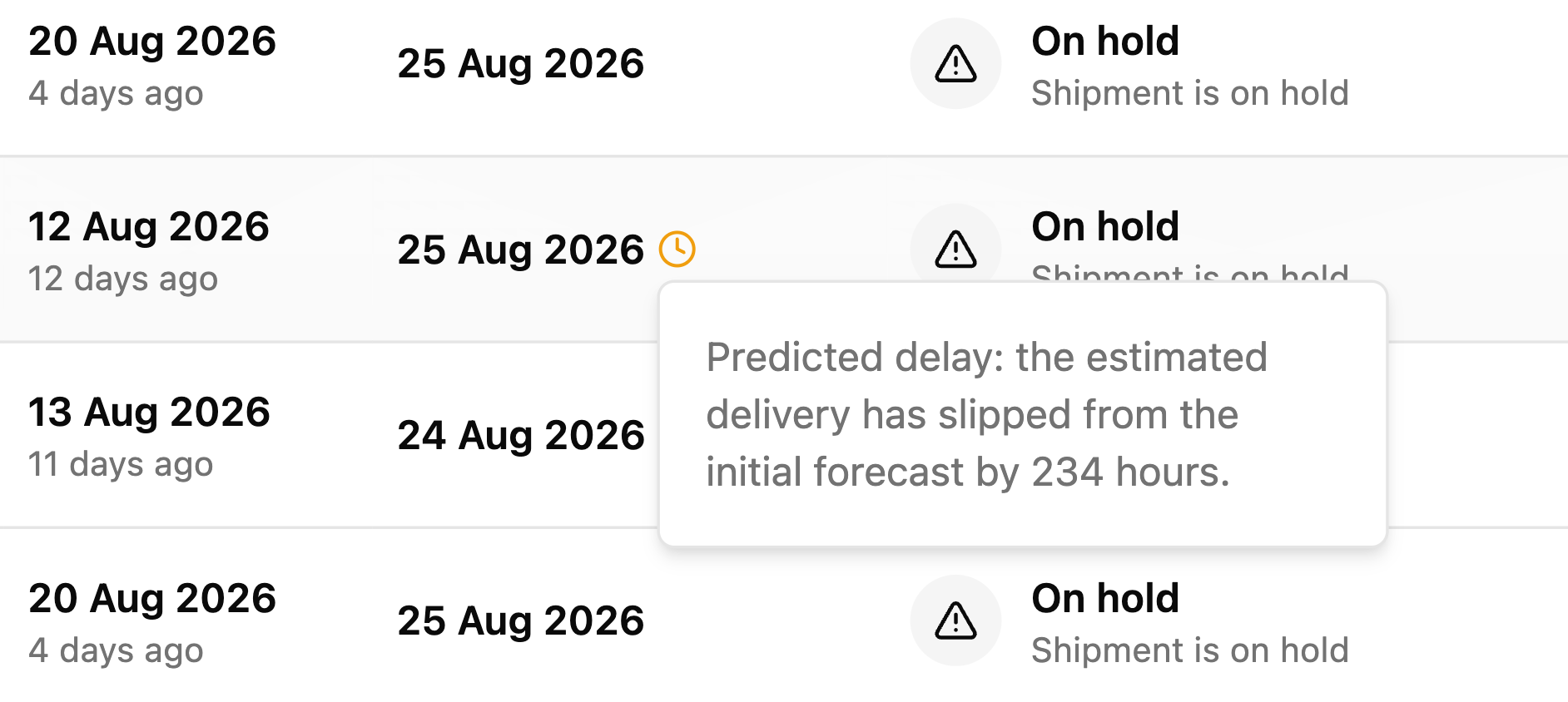
If a shipment's Delivery Forecast date slips significantly from its original prediction, you'll see an amber clock icon next to the date. This is an early signal that the shipment may be trending toward a late delivery, often before that's visible in the carrier's own tracking updates.
Hover the clock icon to see the predicted delay popover, explaining that the estimated delivery has slipped from the initial forecast.
Catch shipment delays before your customers do
Try ShippyPro free for 14 days and bring every shipment, status and exception into one dashboard.

6. Tracking Status Guide: shipment delays, exceptions and delivery statuses explained
Tracking Solver uses 40+ detailed tracking statuses received from carriers for precise categorization. Here are the most important ones:
Normal Progress Statuses
| Status | What it means |
|---|---|
| Information Received | Label created, awaiting carrier pickup |
| In Transit | Package moving through carrier network |
| Out for Delivery | Package on delivery vehicle |
| Available for Pickup | Ready at pickup point (PUDO/locker) |
At Risk Statuses ⚠️
| Status | What it means |
|---|---|
| Delayed | Behind schedule |
| Failed Attempt | Delivery attempted but unsuccessful (recipient absent, business closed) |
| External Causes | Weather, strikes, or other disruptions |
| Address Discrepancies | Incomplete or incorrect address information |
| Customs Issues | General customs delays |
📌 Any shipment without tracking updates for 36+ hours is automatically flagged as "At Risk," even if the last status seemed normal.
Action Needed Statuses 🔴
| Status | What it means |
|---|---|
| On Hold / Giacenza | Parcel waiting for instructions or payment |
| Damaged | Package damaged during transit |
| Lost | Package cannot be located |
| Missing Documents | Required documentation not provided |
| Carrier Asks to be Contacted | Carrier needs additional information |
Delivered
| Status | What it means |
|---|---|
| Delivered | Shipment delivered |
| Delivered (Manual) | Shipment was manually marked as delivered by the sender when carrier tracking was unavailable or incorrect (status code 6900). |
7. Tips for Success with your parcel tracking software
- ✅ Check Tracking Solver daily: Early detection prevents customer complaints
- ✅ Use filters strategically: Focus on high-priority carriers or destinations during peak times
- ✅ Add notes consistently: Build a history of actions taken
- ✅ Use alongside your existing tools: Tracking Solver complements your current processes
Use ShippyPro Notifications to automatically inform customers about shipment status changes, including Out for Delivery, Delivered, Exceptions, and Delays. Keeping customers updated reduces "Where is my package?" inquiries and improves satisfaction, while you focus on resolving issues in Tracking Solver.
Instead of checking Tracking Solver for flagged shipments, use Internal Alerts to notify your team the moment a shipment is marked Action Needed or At Risk. It uses the same trigger logic as this dashboard, so the flagged shipment comes to you instead of the other way around.
8. FAQ: Tracking Solver, parcel tracking software and shipment delays
Where can I access Tracking Solver?
You can access Tracking Solver from the Tracking section in the menu or directly via the Tracking Solver link (https://app.shippypro.com/tracking-solver).
Can I export data from Tracking Solver?
Yes! You can export shipment data as a CSV file directly from the dashboard. The export respects all active filters and includes up to 10,000 rows. Click the Export button at the top of the shipments table. See Exporting Shipment Data for full details.
How far back does Tracking Solver show shipments?
Shipments from the last 3 months are visible, including delivered packages.
Why is a shipment marked "At Risk" when the carrier hasn't reported problems?
Tracking Solver proactively detects potential issues before carriers report them. For example, any shipment without tracking updates for 36+ hours is automatically flagged, even if the last status seemed normal.
Will the old tracking section be removed?
Not yet. Both versions will run in parallel during the transition. You can use whichever works best for your workflow, even if we suggest using the new Tracking Solver dashboard that can help you spot issues quickly.
Why don't I see a shipment I just created?
Shipments appear in Tracking Solver only after the carrier provides the first tracking scan. Pre-shipping labels won't show until the carrier picks up the package.
What does "Manually marked as delivered" mean?
It means a member of your team used the Mark as Delivered action because the carrier wasn't updating tracking or reported the delivery incorrectly. See How to mark an order as Delivered manually for full details.
What does the amber clock icon next to the Delivery Forecast date mean?
It means the shipment's predicted delivery date has slipped significantly from the original forecast: an early sign it may be trending late. Hover the icon for details. It disappears automatically once the shipment is delivered.
What is parcel tracking software used for?
Parcel tracking software brings your carriers' tracking updates into one place, so you can see where every shipment is and act when something goes wrong. Tracking Solver goes a step further by sorting shipments by urgency, so delays, exceptions and stalled parcels surface automatically. For a wider look at the category, read our guide to package tracking software.
How does Tracking Solver spot shipment delays before the carrier reports them?
In two ways. Any shipment without a tracking update for 36+ hours is flagged "At Risk," even if its last status looked normal. And when a shipment's Delivery Forecast slips significantly from the original prediction, an amber clock icon appears, often before the delay is visible in the carrier's own tracking updates.
Is the Delivery Forecast the same as the carrier's estimated delivery date?
No. The carrier's own estimated date is often missing or unreliable. The Delivery Forecast is generated by ShippyPro's AI model, independently from the carrier, and updated automatically with every new tracking event.
What happens to a shipment exception such as a weather delay?
Disruptions like weather or strikes count as External Causes, an At Risk status, so they're grouped with other shipments to monitor. More serious problems (a parcel on hold, damaged, lost, or missing documents) go to the Action Needed tab for immediate intervention. If a parcel is confirmed lost, our lost parcel guide for ecommerce merchants walks through the next steps.
Can I see delayed shipments for just one carrier or marketplace?
Yes. Combine the Carriers, Stores and Status filters (for example, Store: Amazon + Status: Delayed), then save the combination as a custom view so it's one click away next time.
How do I reduce "Where is my package?" questions when shipments are delayed?
Use ShippyPro Notifications to automatically tell customers about status changes, including Delays and Exceptions. Keeping customers updated cuts down on these inquiries while your team resolves issues in Tracking Solver. Our guide on how to reduce WISMO tickets has more ideas.
Can my team get alerts about delayed shipments without opening the dashboard?
Yes. Internal Alerts notify your team the moment a shipment is marked Action Needed or At Risk, using the same trigger logic as Tracking Solver.
Stop chasing tracking numbers
Start your free 14-day trial and see delays, exceptions and stalled parcels in one parcel tracking software dashboard.

Andrea Gaspari is a Product Designer at ShippyPro. He designs user-centered experiences that turn shipping data into actionable insights and help merchants streamline operations, enhance delivery performance, and optimize carrier selection. Andrea is passionate about simplifying complexity through thoughtful design and building tools that empower eCommerce teams to make confident, data-backed decisions.